Today is the day I decided I had enough of Excel’s lack of a Paste Special shortcut key.
Pasting Annoyances
There are several ways to Paste Special via the keyboard but all of them involve multiple key press sequences. This may have been simple enough, but when the source of the copied content is from a source other than Excel the Paste Special dialogue box differs, and the last couple keys in the sequence differ as well.
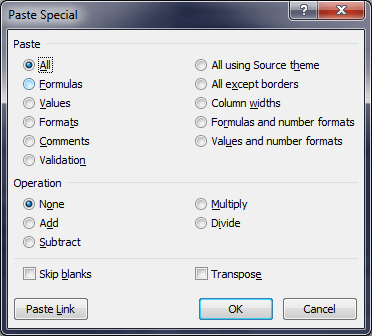
Fig. 1 The Excel source Paste Special dialogue

Fig. 2 The Microsoft Word source Paste Special dialogue
To create a shortcut key for a function (that is not represented by a menu button) we must first create a macro for that function.
Macro Errors
A simple macro like:
Sub PasteVal()
    Selection.PasteSpecial Paste:=xlValues
End Sub
works fine if you are copying cells from Excel or objects from Word, Outlook, etc. If you are copying text, from inside an Excel cell or elsewhere, you will get an error:

Fig. 3 Error pasting text from outside Excel into Excel
You may also get this error if you run the macro via the Developer -> Macros dialog box. So remember to run your macro via the shortcut, which we will create below.
Paste Special Macro
To create a macro that can handle pasting both types of data we can use an error catching routine. Also, since we now know that running a macro will clear the undo stack, we should include code that will give us some protection from pasting an erroneously.
' Custom data type for undoing
    Type SaveRange
        Val As Variant
        Addr As String
    End Type

' Stores info about current selection
    Public OldWorkbook As Workbook
    Public OldSheet As Worksheet
    Public OldSelection() As SaveRange
'----------------------------------------------------------
Sub PasteValues()

' Set shortcut to Cntl+Shift+V, for example
' Works for Outlook and Chrome AND Excel

' Abort if a range isn't selected
    If TypeName(Selection) <> "Range" Then Exit Sub

' The next block of statements
' save the current values for undoing
    ReDim OldSelection(Selection.Count)
    Set OldWorkbook = ActiveWorkbook
    Set OldSheet = ActiveSheet
    i = 0
    For Each cell In Selection
        i = i + 1
        OldSelection(i).Addr = cell.Address
        OldSelection(i).Val = cell.Formula
    Next cell

' Start paste function
    On Error GoTo ValuesFail
    ' Works for Excel and Outlook, but not Chrome
    Selection.PasteSpecial Paste:=xlValues
    ' Specify the Undo Sub
    Application.OnUndo "Undo the macro", "UndoMacro"
    Exit Sub
ValuesFail:
    On Error GoTo TextFail
    ' Works for Outlook and Chrome, but not Excel
    ActiveSheet.PasteSpecial Format:="Text"
    ' Specify the Undo Sub
    Application.OnUndo "Undo the macro", "UndoMacro"
    Exit Sub
TextFail:
    On Error GoTo PasteFail
    ActiveSheet.Paste
    ' Specify the Undo Sub
    Application.OnUndo "Undo the macro", "UndoMacro"
    Exit Sub
PasteFail:
    MsgBox "Complete Failure"
End Sub
'----------------------------------------------------------
Sub UndoMacro()
' Reinstates data in the selected range

' Tell user if a problem occurs
    On Error GoTo Problem

    Application.ScreenUpdating = False

' Make sure the correct workbook and sheet are active
    OldWorkbook.Activate
    OldSheet.Activate

' Restore the saved information
    For i = 1 To UBound(OldSelection)
        Range(OldSelection(i).Addr).Formula = OldSelection(i).Val
    Next i
    Exit Sub

' Error handler
Problem:
    MsgBox "Can't undo macro"
End Sub
'----------------------------------------------------------
Sub RevertFile()
' From http://www.excelforum.com/showthread.php?t=491103

    wkname = ActiveWorkbook.Path & "\" & ActiveWorkbook.Name
    ActiveWorkbook.Close Savechanges:=False
    Workbooks.Open Filename:=wkname

End Sub
The code above will allow you not only to paste both text and objects into Excel, it will also allow you to undo changes to data in the range selected for pasting. Even if you erroneously paste over needed data, you can run the RevertFile macro to reload your worksheet to its last saved state.
In case you would like to experiment more with what code works with what sources you can use the code below.
Sub PasteOutlook()

' Set shortcut to Cntl+Shift+B, for example
' Works for Excel and Outlook, but not Chrome

    Selection.PasteSpecial Paste:=xlValues
End Sub
'----------------------------------------------------------
Sub PasteExcelOnly()

' Set shortcut to Cntl+Shift+E, for example
' Works for Excel, but not Outlook or Chrome

    Selection.PasteSpecial Paste:=xlPasteValues, Operation:=xlNone, SkipBlanks:=False, Transpose:=False
End Sub
'----------------------------------------------------------
Sub PasteChrome()

' Set shortcut to Cntl+Shift+C, for example
' Works for Outlook and Chrome, but not Excel

    ActiveSheet.PasteSpecial Format:="Text"
End Sub
One more thing: save these macros in PERSONAL.XLSB so that your new Paste Special shortcut is available in all your spreadsheets.
I hope these macros will help you as much as they will me!
 Review Geek